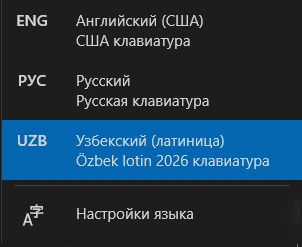
“Özbek lotin 2026” keyboard layout
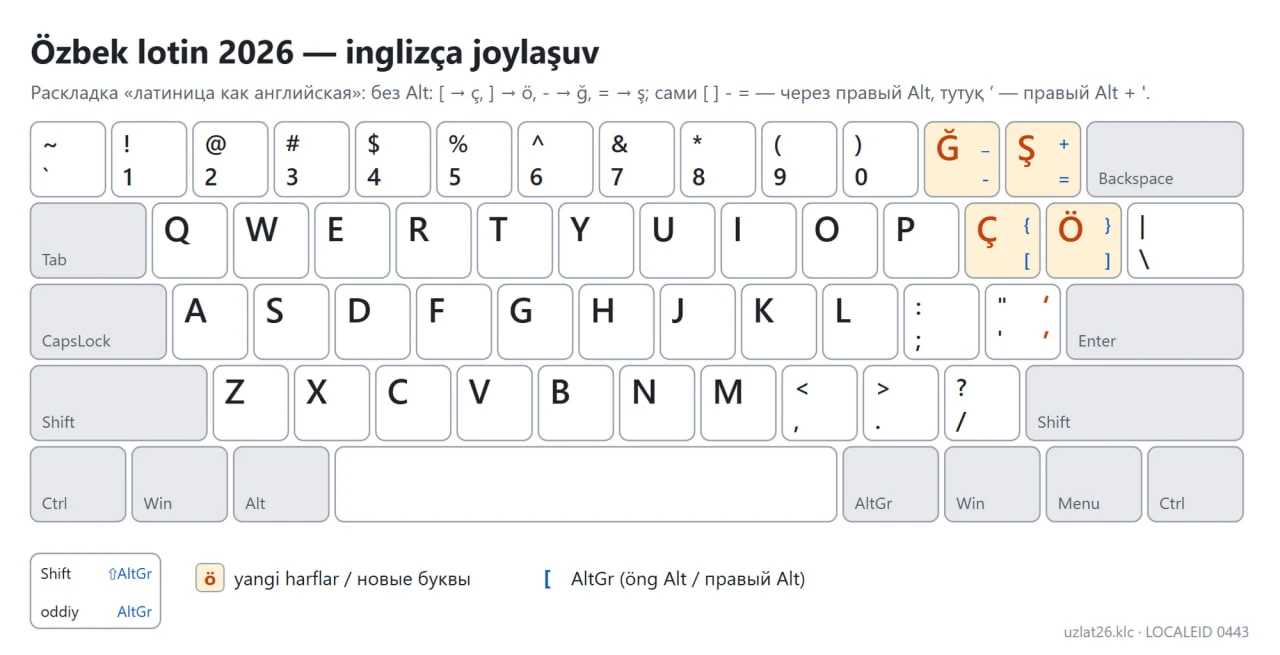
Just like the English layout, except the four new letters are typed with a single key, no Alt needed.
For Windows 10 / 11
An app for typing the letters of the new Uzbek alphabet (O‘/Ö, G‘/Ğ, Sh/Ş, Ch/Ç) quickly and comfortably and for converting old texts to the new alphabet.
For Microsoft Word
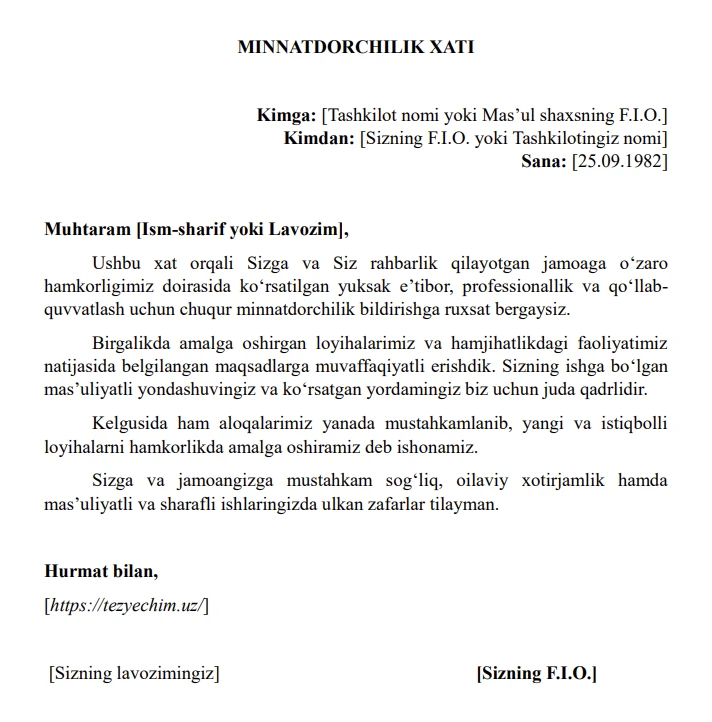
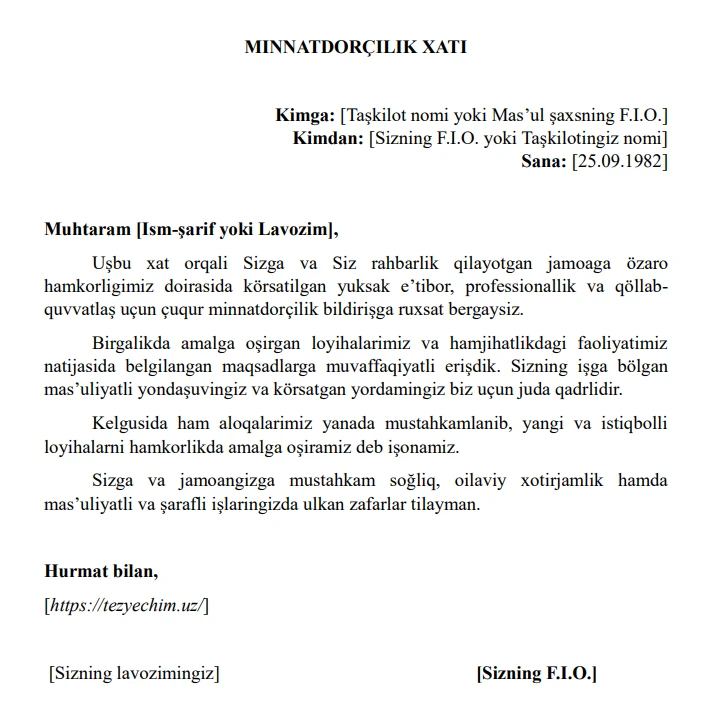
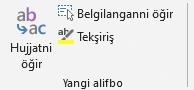
Click “Hujjatni ögir” and the whole document switches to the new alphabet. Formatting, links and the tutuq sign are preserved.
 BeforeAfter
↔ Drag the slider
Just like the English layout, except the four new letters are typed with a single key, no Alt needed.
Converts a document from the old Latin or Cyrillic script to the new alphabet in one click.
Converts the text in spreadsheets; formulas and numbers stay unchanged.
For organisations: converts many .docx, .xlsx, .txt and .csv files at once.
Four new letters - one key each.
Easy to remember - you’ll learn it in 5 minutes
| Key | Letter | With Shift |
|---|---|---|
| [ | ç | Ç |
| ] | ö | Ö |
| - | ğ | Ğ |
| = | ş | Ş |
After installation, “Yangi alifbo” buttons appear on the Word and Excel ribbons:
Both old Latin and Cyrillic are converted: «Тошкент шаҳри» → «Toşkent şahri». Russian text stays as it is. Links, email addresses, English words and the tutuq sign (Isʼhoq, maʼno) are not changed either. Formatting is preserved. In Excel, formulas and numbers stay unchanged. Everything can be undone with a single Ctrl+Z.
If Windows shows “Windows protected your PC”, click “More info”, then “Run anyway”.
If an earlier version is installed, there is no need to remove it: the new one installs over it.
Settings → Apps → Yangi Alifbo 2026 → Uninstall.